
Guide
Run your first booth
From installing the app to the report for your client: every step you need, with short videos under a minute.
01 · Before the event
Set up in 10 minutes
Do this at home, or when you arrive at the venue.
- 1
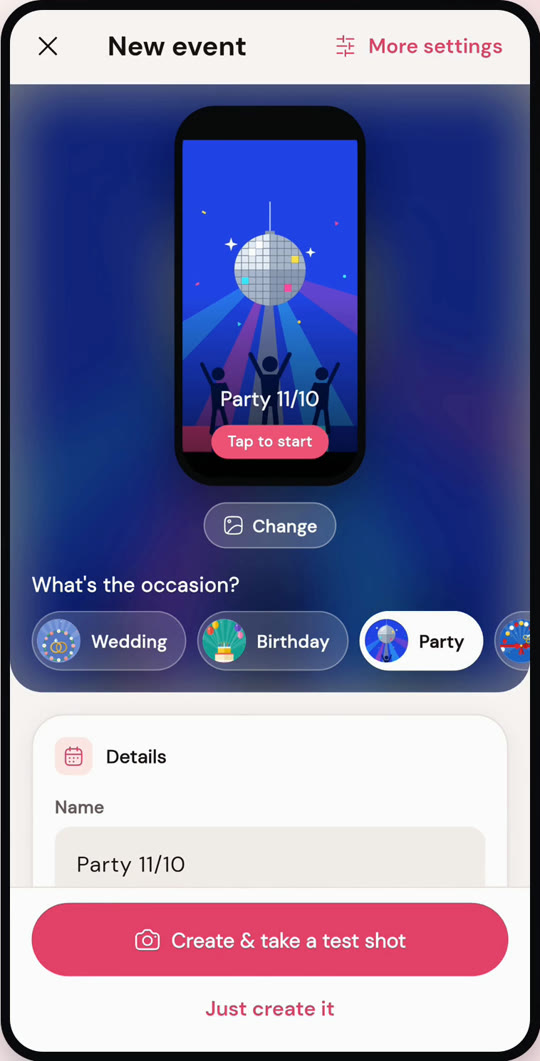
Step 1: Create the event
Open OrbitBooth and tap Create event. Pick the occasion (wedding, birthday, party, corporate…), a name and a start time. The cover, guest screen and the right features come switched on.
- 2
Step 2: Pick a frame and music
In Edit event › Look & templates, choose a frame from the library or design your own with text, stickers and your logo. Pick a track; the slow-motion lands on the beat.
- 3
Step 3: Choose how videos are sent
In the Sharing tab, QR is always on. Turn on SMS, WhatsApp or email so guests can get their link by message. Add a guest details form or voice messages if the event calls for it.
- 4
Step 4: Take a test shot
Tap Create & take a test shot. Adjust framing and light; rehearsal takes aren't saved or uploaded.
02 · During the event
Open the booth and let guests play
The booth runs itself; stay close in case someone needs a hand.
- 1
Step 1: Open the booth
Tap Open booth. OrbitBooth checks battery, storage and camera access first. Set a PIN so guests can't leave the booth screen.
- 2
Step 2: Guests step in
Guests pick their language and tap start, or you trigger it with a Bluetooth remote. A countdown with a pose challenge, then a few seconds of recording.
- 3
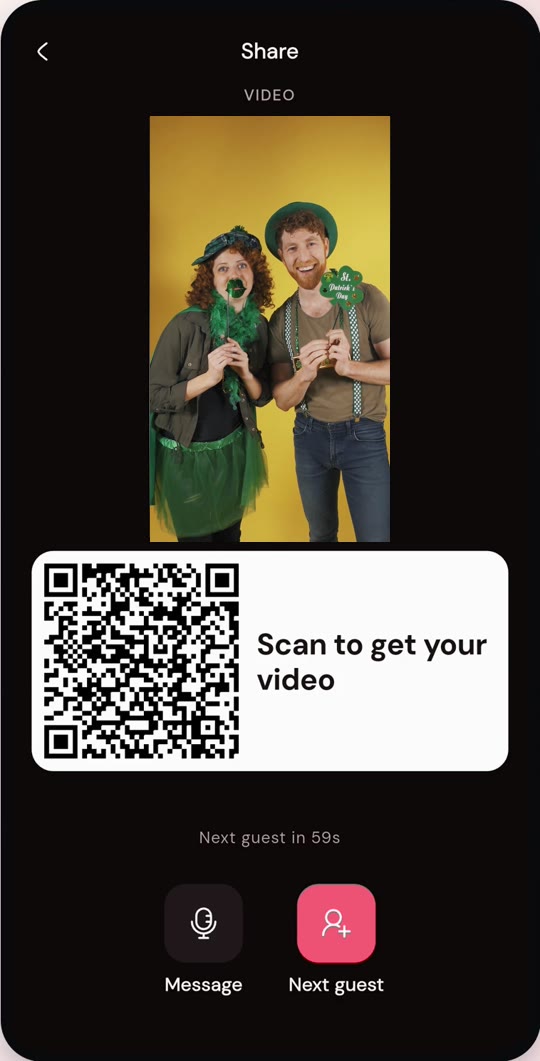
Step 3: Guests get their video
Right after the take, a QR code appears. Guests scan it to download, or tap Send to guest to get it by SMS, WhatsApp or email. They can leave a voice message too.
- 4
Step 4: When nobody's there
The attract loop replays recent videos to draw people in. Need to leave the booth? Unlock it with your PIN.
03 · After the event
Wrap up and send it to your client
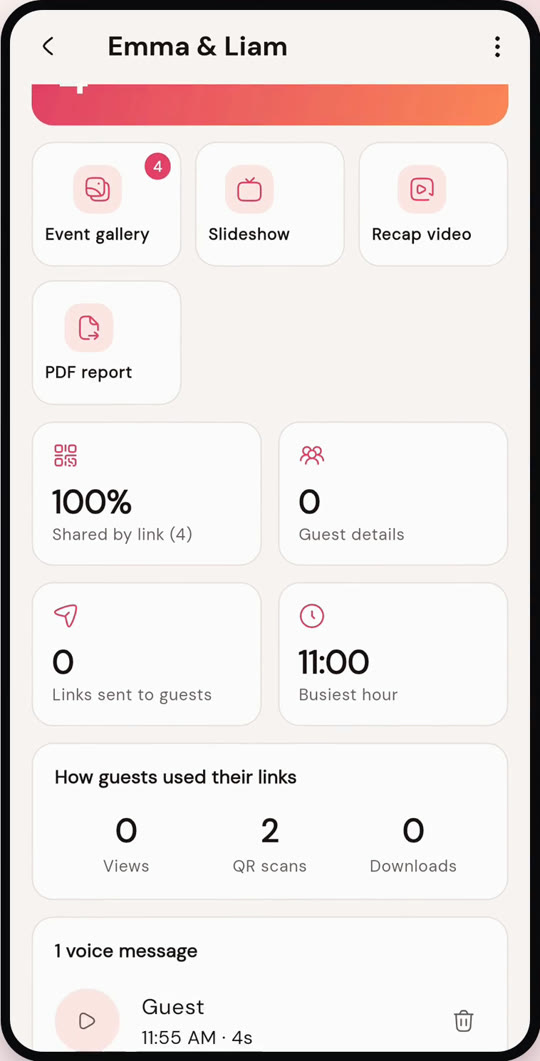
Everything is in the event's Overview.
- 1
Step 1: Check the overview
Captures, share rate, QR scans, your busiest hour and every voice message.
- 2
Step 2: Make the recap video
One tap cuts the best moments into a 30–45 second video with the event's music.
- 3
Step 3: Send the report
Export a one-page PDF report and share the event's web gallery with your client.
Tips for great videos
Phone at chest height
Use a tripod or a spin platform, with the camera level with guests' chests.
Light from the front
One LED light facing the guests; avoid a bright window behind them.
Keep it charging
A busy booth uses a lot of battery; run a long cable or a power bank.
No Wi-Fi needed
Videos save on the phone first and sync when there's signal. The QR still works so guests get them later.
Still need help?
Read the FAQ or email us; we usually reply within one working day.